
Blurry footage is one of the most common frustrations in modern video. A clip from an older phone, a dim concert recording, or a heavily compressed download can look soft on today’s high-resolution screens, and traditional fixes demand costly software and editing experience. Wink, an AI video and photo enhancer from Meitu, promises a faster route: upload a clip, pick a result, and let the AI repair it. That promise is easy to make and hard to keep, so we put it to a careful test.
In this review, we look at the main Wink platform at wink.ai and its free HD video converter, which upscales footage to 1080p, 2K, or 4K in a browser. We assess features, ease of use, output quality, and pricing, then explain who should use it. Our verdict is a full five stars, and the sections below explain why. We also flag a few limits worth knowing before you start.
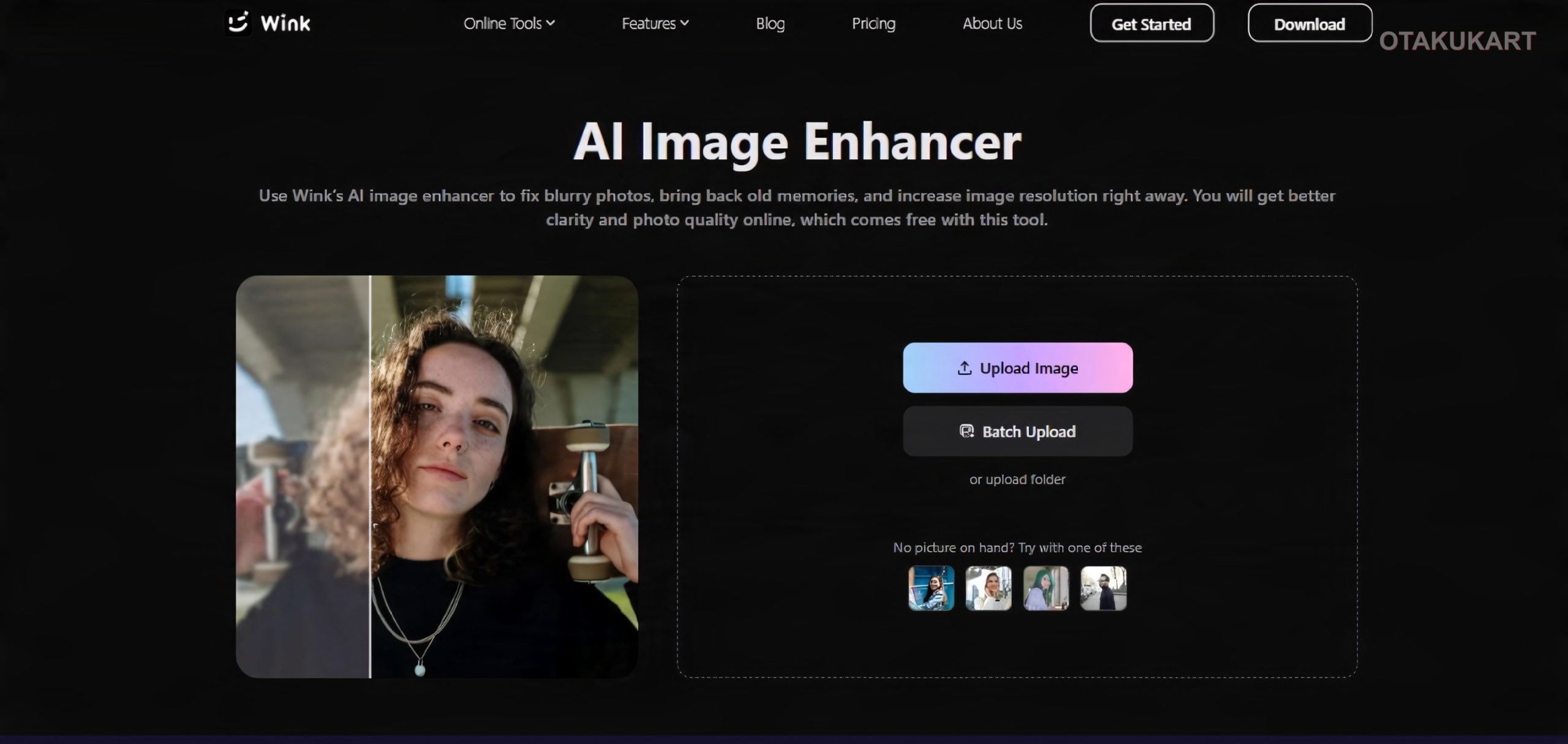
Powerful AI Enhancement Tools, Simple Workflows, And Wide Platform Support
Wink’s biggest strength is breadth without clutter. The homepage organizes everything around a simple idea: enhance all scenes of video and images. Under that sits a deep toolset covering video enhancement, image upscaling, watermark and object removal, noise reduction, color enhancement, night scene repair, frame interpolation, old photo restoration, portrait retouching, and creative AI effects such as anime styles.
The video enhancer stands out because it does not treat every clip the same. It offers scene-specific models for portraits, scenery, concerts, and game footage. A dim stage recording and a gameplay capture have very different problems, and having a dedicated model for each is a sensible design choice. An adjustable strength control lets you pull back the effect when a clip starts to look over-processed, which keeps results from drifting into that artificial, waxy look common in AI tools.
Ease of use is excellent. Wink describes itself as built for beginners and professionals alike, and the one-tap workflow backs that up: choose a tool, upload, adjust if needed, and export. There is no timeline to learn and no prompt to write. Batch processing is also available, which is a real time saver if you have a folder of clips or photos to clean up.
Platform coverage is another point in Wink’s favor. It runs on iOS and Android, on macOS and Windows desktops, and in a web browser. Professionals get a plug-in for Adobe Premiere Pro, and the supported formats grow as you move up to desktop, where MKV, AVI, and RAW photo files are handled. You can start on the web, then move to the app when you need more power.
Output Quality and the Free HD Video Converter
The HD Video Converter is the easiest way to judge Wink’s output. It runs entirely in the browser, so there is nothing to install. You upload a video, choose 1080p, 2K, or 4K, and download the enhanced result a few minutes later. Independent reviewers describe the same simple flow, including a resolution selector with those three options.
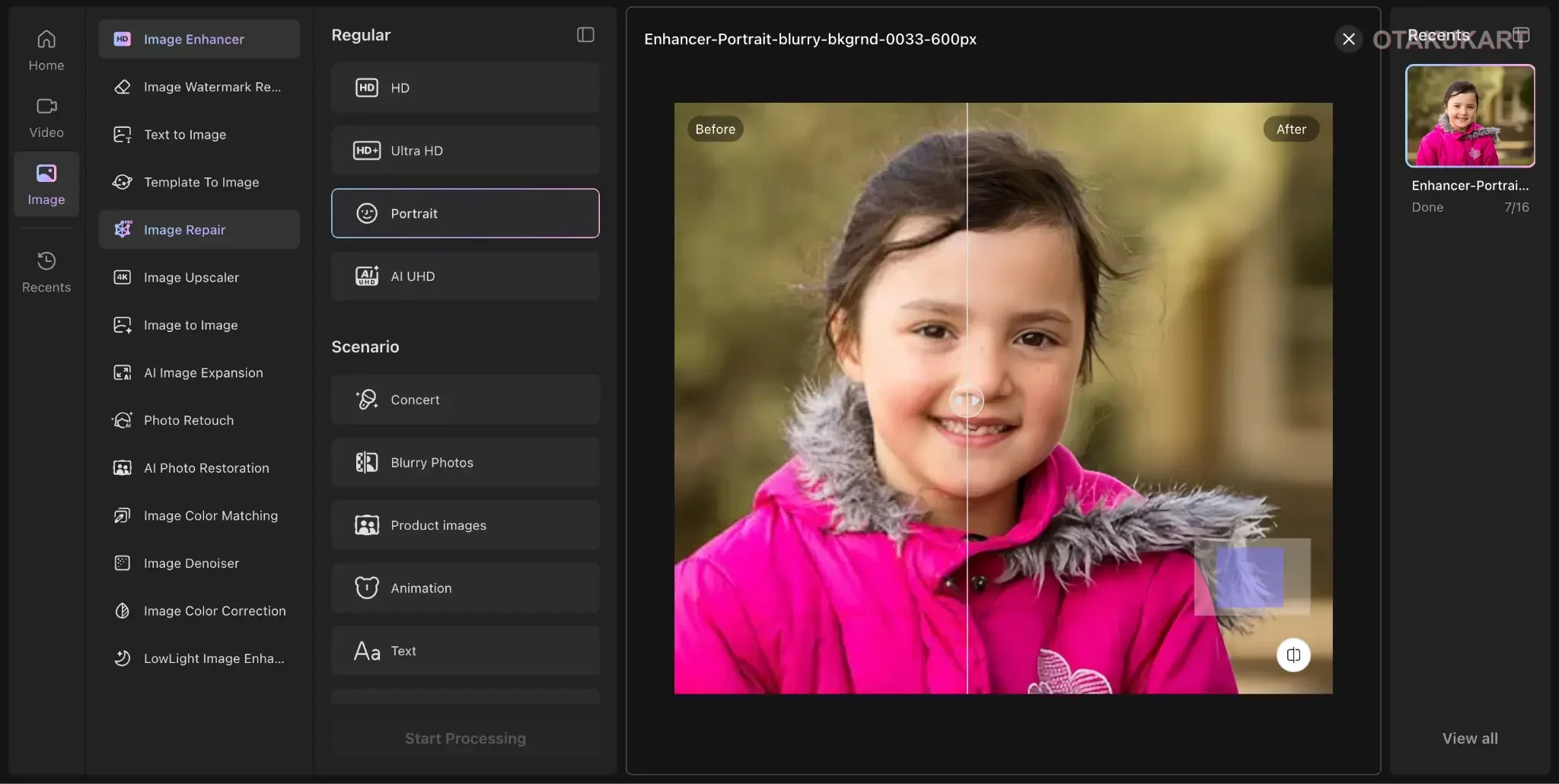
Quality is where Wink earns its top score. Rather than just enlarging pixels, the converter cleans noise and improves color and texture as it upscales. Its scene-aware approach limits smoothing and sharpening, so skin keeps natural texture and lighting is not flattened. One third-party roundup of free converters praised the natural look, preserved motion and texture, and friendly interface. Independent testers of Wink’s upscaling used footage such as grainy low-light drone shots, which is exactly the kind of difficult material that exposes weak AI tools.
Choosing the right output resolution makes a real difference:
- 1080p: Ideal for social posts, phone viewing, and quick shares.
- 2K: A good middle ground for larger monitors and polished web content.
- 4K: Best for big screens, archival upgrades, and footage you plan to crop or reframe.
A realistic note on expectations: AI enhancement cannot invent detail that was never captured. A clip shot at very low resolution or with severe motion blur will improve, but it will not look like native 4K footage. Starting from the best source file you have always produces better results. This is true of every tool in the category, and Wink handles ordinary real-world footage well.
Batch upload deserves a mention too. The converter lets creators process several videos in one workflow, so a social media team or YouTuber can upgrade a whole set of clips with consistent settings instead of repeating the steps one by one.
Wink Offers Generous Free Tools, Easy Video Enhancement, And Flexible Plans For Heavier Users
Wink is free to start, and the web converter offers free access for basic use. Heavier use moves into paid plans. On mobile, VIP and VIP+ tiers raise batch limits, daily cloud processing quotas, and the maximum video length per task, with VIP+ also covering PC. The web version has its own Creative Plan with Standard and Pro tiers that grant monthly credits. The structure is a little layered, and you may need a minute to work out which tier matches your platform. For casual users, though, the free tools are generous enough to evaluate the product properly before spending anything.
Other limits are worth keeping in mind:
- Cloud processing means upload speed and file size affect how long you wait.
- Very long or very large files push you toward paid tiers.
- Results depend heavily on the quality of the original footage.
- Some of the more advanced features are easier to use in the app than on the web.
These are minor trade-offs next to what Wink delivers. The core job, making blurry or low-resolution footage look clearer without a steep learning curve, is done well. The tool is easy to use, the output looks natural, and the free entry point lowers the risk of trying it.
Scorecard
| Category | Score |
|---|---|
| Features | 5/5 |
| Ease of use | 5/5 |
| Output quality | 5/5 |
| Value | 5/5 |
| Overall | ⭐⭐⭐⭐⭐ 5/5 |
Wink is an easy recommendation for anyone with footage that deserves to look better, from families rescuing old home videos to creators and editors upgrading client work. Start with the free HD Video Converter on one clip. If the result impresses you, the wider platform is ready when you are.