

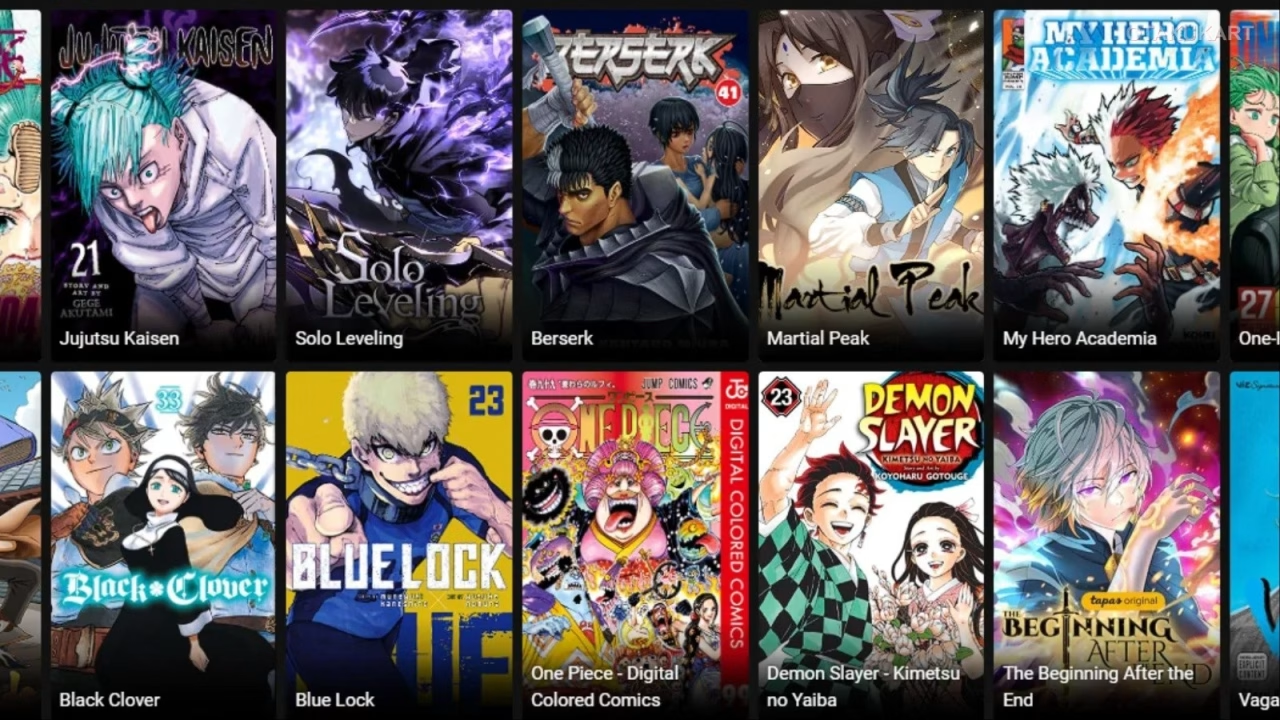
Manga apps come and go, but MangaZone has stuck around in the Books & Reference corner of Android for years, mostly because it does one thing without much fuss: it opens manga chapters and gets out of the way. The listing describes a catalog of more than 15,000 titles translated into English, updated daily, and free to read online.
That number is the main draw. If you read widely across shounen, seinen, shoujo, and the long tail of series that never get a licensed English release, a catalog that size means fewer dead ends when you go looking for chapter 212 of something obscure.
Browsing, reading, and the comment threads
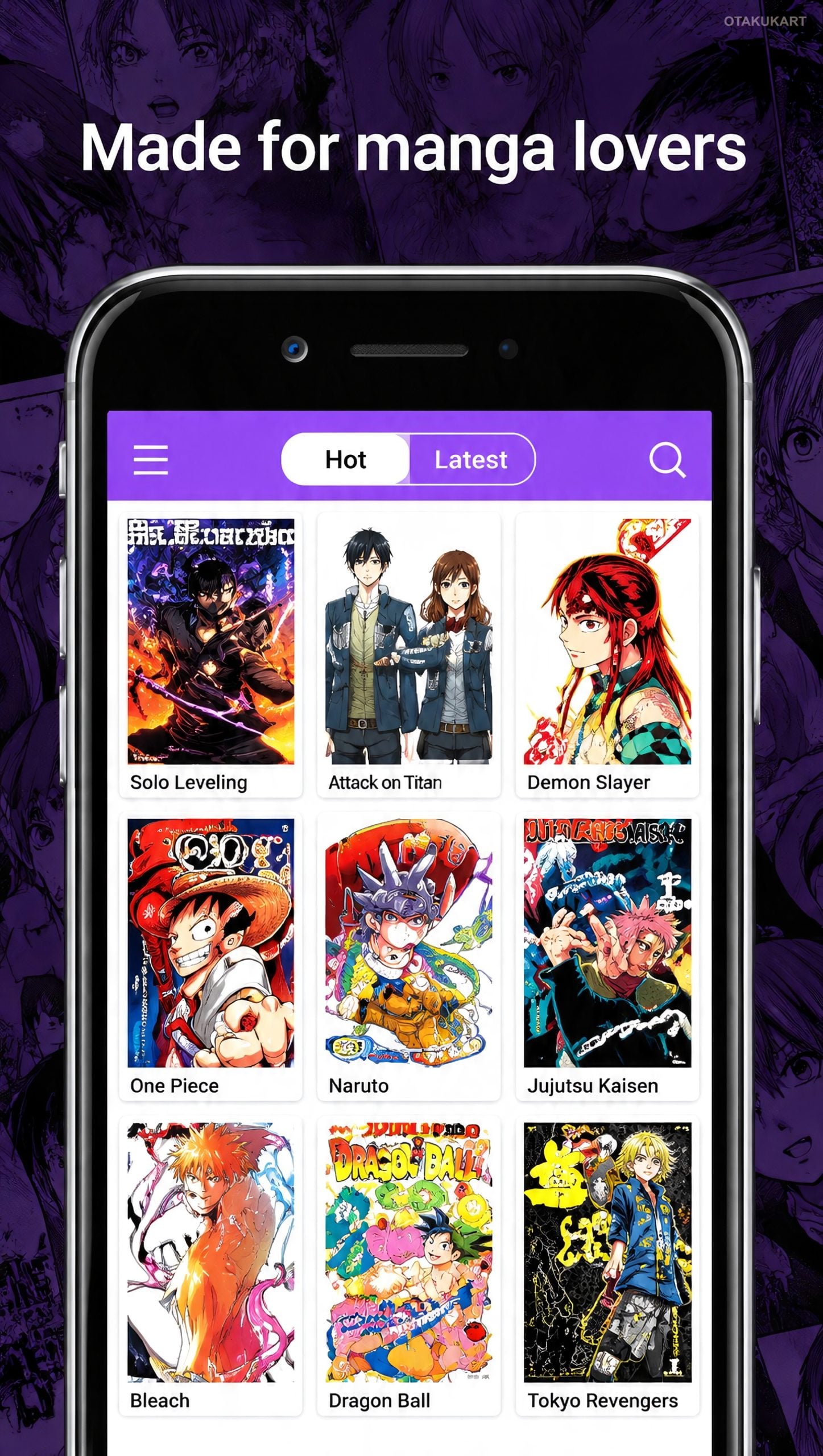
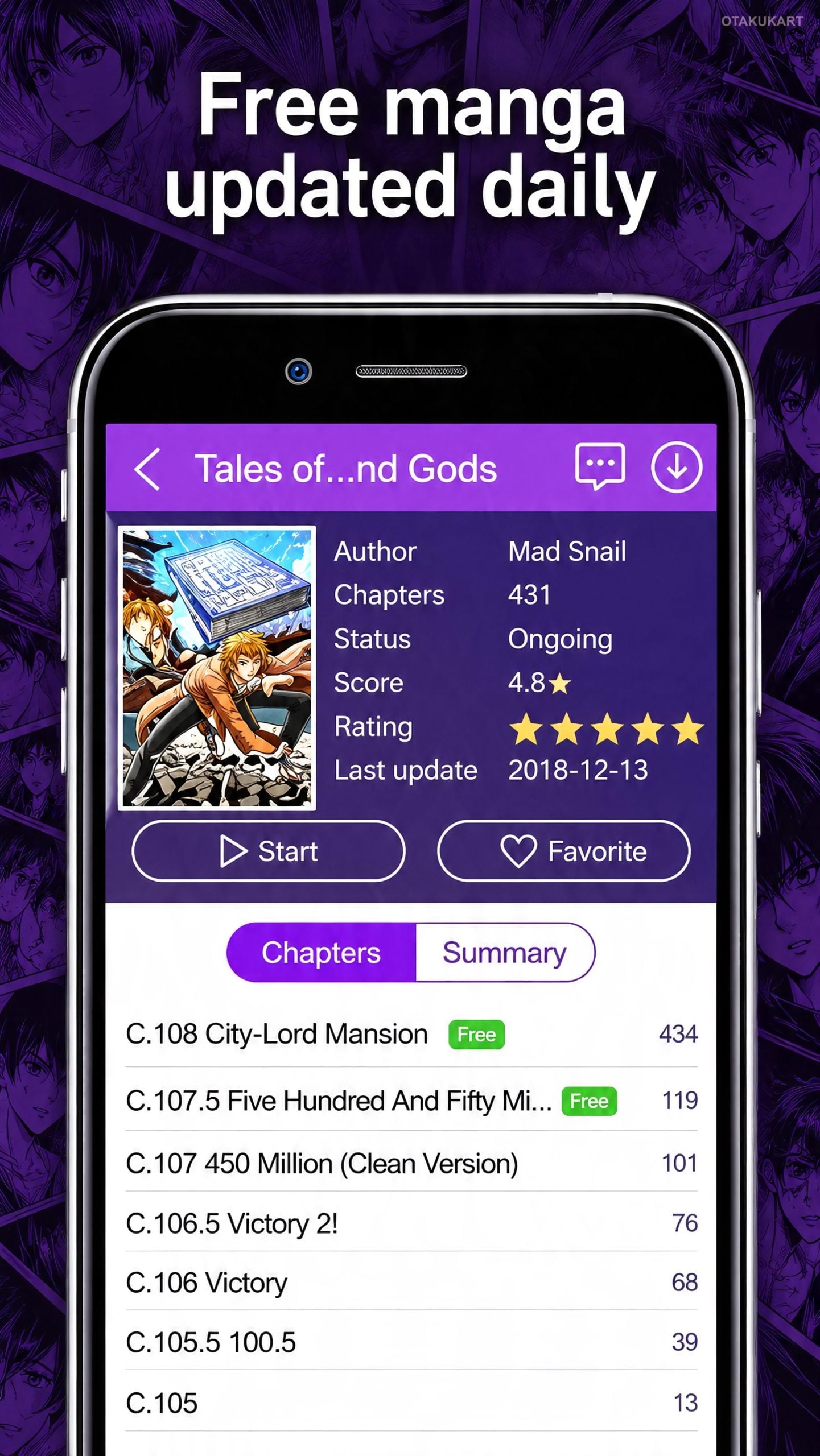
MangaZone, published under the name WSV, is a reader first. You browse or search a title, pick a chapter, and the pages load in a scrolling or tapping view. There is a comment layer on each series, which is where readers recommend titles to each other, argue about arcs, and flag when a translation group has gone quiet.
The daily update cadence matters more than it sounds. Scanlation releases are irregular, and a reader app that refreshes its listings every day is the difference between finding a new chapter the day it drops and finding it a week later.
Everything is read online rather than stored as a local library, so the experience is closer to a web reader wrapped in an app than to something like a CBZ file manager. That shapes who it suits.
Binge readers versus collectors
The obvious audience is the person who reads five or six ongoing series at once and wants them in one place instead of across five different scanlation sites with five different layouts. Browsing by genre or popularity also makes it a reasonable discovery tool when you have finished a series and want something adjacent.
It is less suited to archivists. If your habit is downloading complete runs and curating a personal collection, a reader built around streaming pages from a server is not the tool for that job.
MangaZone aggregates fan translations, the same legal grey area most free manga readers sit in. Plenty of readers use apps like this to sample a series and then buy the licensed volumes when they exist. That’s a decision each reader makes on their own.
Panels were not drawn for a phone screen
Manga is printed art. Double-page spreads, dense panel layouts, small lettering in background signage and the kind of detailed crowd scenes artists like Inoue or Miura built careers on all lose something at phone size. You end up pinching and dragging across a single panel, which breaks the flow of the page.
A monitor fixes that without any effort.
A full spread fits at once, and you read the page as the artist composed it. Because MangaZone has no native desktop build, running it on Windows means putting the Android version inside an emulator. Since the app streams pages continuously as you scroll, a setup that keeps rendering smooth across long reading sessions matters more here than raw benchmark power, which is the practical argument behind guides for MangaZone for PC and the mouse-wheel-and-arrow-key reading they enable instead of endless thumb swiping.
Getting MangaZone running on Windows
The general approach is an Android emulator. BlueStacks is the usual starting point because its installer handles most of the configuration itself. Players who want something lighter sometimes prefer LDPlayer, which tends to be gentler on older machines.
Two settings are worth touching for this specific app. First, screen resolution and orientation: emulators default to a phone-shaped portrait window, and manga reads far better if you set the virtual device to a tablet-style resolution so a full page or spread renders without cropping. Second, key mapping: most emulators let you bind the scroll wheel and arrow keys to swipe gestures, which turns chapter navigation into something you can do one-handed while eating.
After that, the app behaves as it does on a phone. Search, bookmark, read, comment.
A few rough edges to expect
Expect occasional broken chapters or mismatched page orders. That is a reality of any app pulling from multiple scanlation sources, not a flaw unique to this one, and backing out and reloading the chapter usually clears it.
Since reading happens online, a stable connection matters. Long chapters of a dense series will chew through data if you are tethering, and the emulator does not change that.
Keep your reading list manageable. The catalog is large enough that it is easy to bookmark thirty series and then lose track of which ones you were actually following, so pruning occasionally keeps the library screen useful.
And treat the comment sections as what they are: reader chatter, often full of spoilers for chapters you have not reached. Scrolling past them is wise on any ongoing series.
When the bigger screen is worth it
Readers working through long, art-heavy series will notice the difference immediately. A Mob Psycho fight scene or a Vagabond spread reads the way it was drawn once a 27-inch monitor replaces a phone screen, panel composition intact instead of scrolled through in pieces. Someone who only checks one or two weekly chapters on the train will not get much from making the switch.


